
October is Cybersecurity Awareness Month!
If there's one thing our team wants every business owner to hear, it's this: most attacks aren't clever. They work because something was left open. A password reused since 2019. A backup nobody checked. An employee who never learned what a fake login looks like now.
Real Story from Our Team
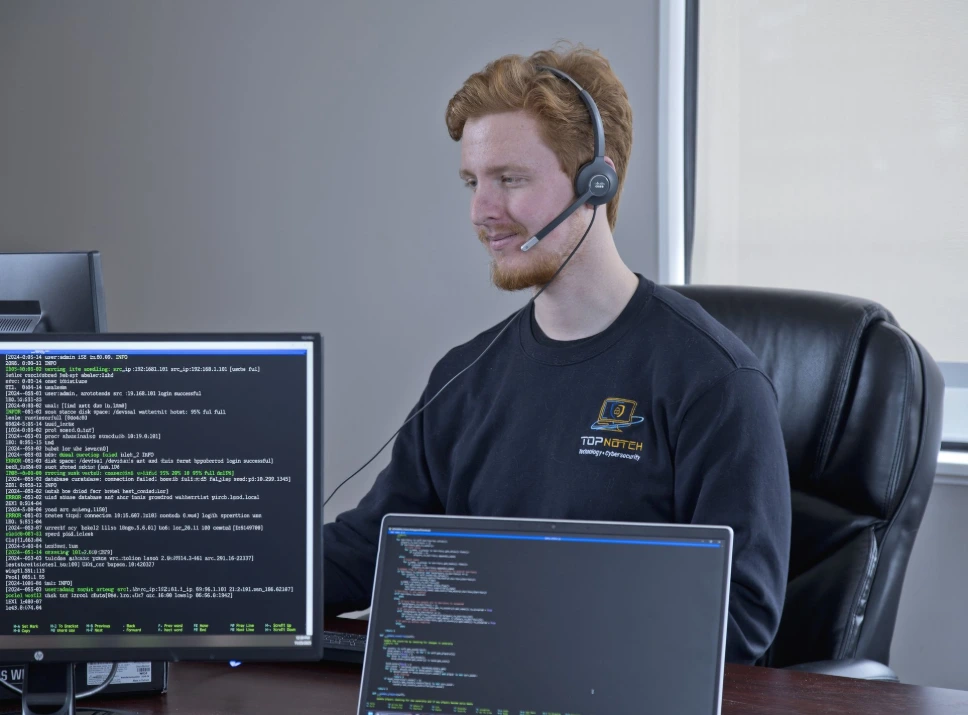
Our security monitoring flagged a remote access program that had quietly installed itself on a client's computer. It was watching everything the employee copied and pasted, passwords included and sending it to the attacker's server. We cut the computer off from the network, wiped it remotely with the client's OK, and set it back up for their team to use.
So, our theme this year is simple. Don't make it easy for them.
Below are the seven fixes we'd make this week if we were running a 15-person office with no IT department.
None of them cost anything extra, and most take less than an hour.
1. Turn on the security you already pay for
If your business runs on Microsoft 365, there's a free setting called security defaults. It requires MFA for everyone and shuts off the older sign in methods attackers use to skip it. Plenty of businesses that set up their accounts years ago never switched it on.
On Business Premium? You're also paying for Conditional Access, which gives you finer control, including the ability to block a sign in trick we cover in fix 5. If nobody has set it up, you're paying for a lock you never installed.
2. Put MFA on everything that matters
Email first, then banking, payroll, accounting software, and anything that holds client data. Use an authenticator app instead of text message codes when you can.
One honest caveat: MFA stops the vast majority of account takeovers, but not all of them. That's why fix 5 exists.
3. Update everything, including the stuff nobody thinks about
Windows and Mac updates are the easy part. Don't forget the firewall, the Wi-Fi router, the copier, and the laptop that hasn't been restarted since August. A lot of updates don't finish until you restart, so restart.
4. Test a restore, not just the backup
A backup you've never restored from is a guess. Pick one important folder, restore it somewhere safe, and open the files. Time how long it takes. If the honest answer is "we don't know how," that's your answer.
5. Teach your team the new red flags
- A "verify you're human" box that asks you to press keys or paste something. Real CAPTCHAs never do that. This scam, called ClickFix, gets you to run the attacker's command for them.
- Someone sends you a code to enter on a Microsoft sign in page. The page is real. The code is the attackers. Entering it hands over your account, MFA and all. It's called device code phishing, and it has grown fast this year.
- Any request to change payment details or send money. Call the person back at a number you already have, not the one in the email.
6. Set one rule for AI tools
The fix is easy to remember: Swap real names for placeholders before you paste. "Client A" instead of the client. "Company X" instead of your business. The tool does the same job, and nothing sensitive leaves the building. Then write down which AI tools your team is allowed to use.
7. Make it safe to say "I clicked something"
Where free stops
These seven fixes close the easy doors. They won't catch something like the program at the top of this post, running quietly in the background. Catching that takes monitoring.
Antivirus and MFA are the lock on the front door. You still need the alarm, the cameras, and someone watching.
Watch for us on ABC 8 Richmond
Top Notch Computers has been protecting Virginia businesses since 1999, with offices in Charlottesville, Richmond, and Falls Church.